Only admins can create and manage public links and embeds.
When to use public sharing
Public sharing is ideal for:- One-off charts and dashboards you want to share broadly
- Marketing pages showcasing analytics or metrics
- Public reports for stakeholders without Metabase access
- Blog posts or documentation with embedded charts
- External websites that need to display your data
Feature comparison
Public sharing
- No authentication required
- Simple iframe embeds
- All Metabase plans
- Limited interactivity
Guest embeds
- Signed, secure embeds
- Filter with locked parameters
- All Metabase plans
- More control than public
SSO embeds
- Full authentication
- Drill-through and exploration
- Pro/Enterprise plans
- Maximum functionality
Create a public link for a question
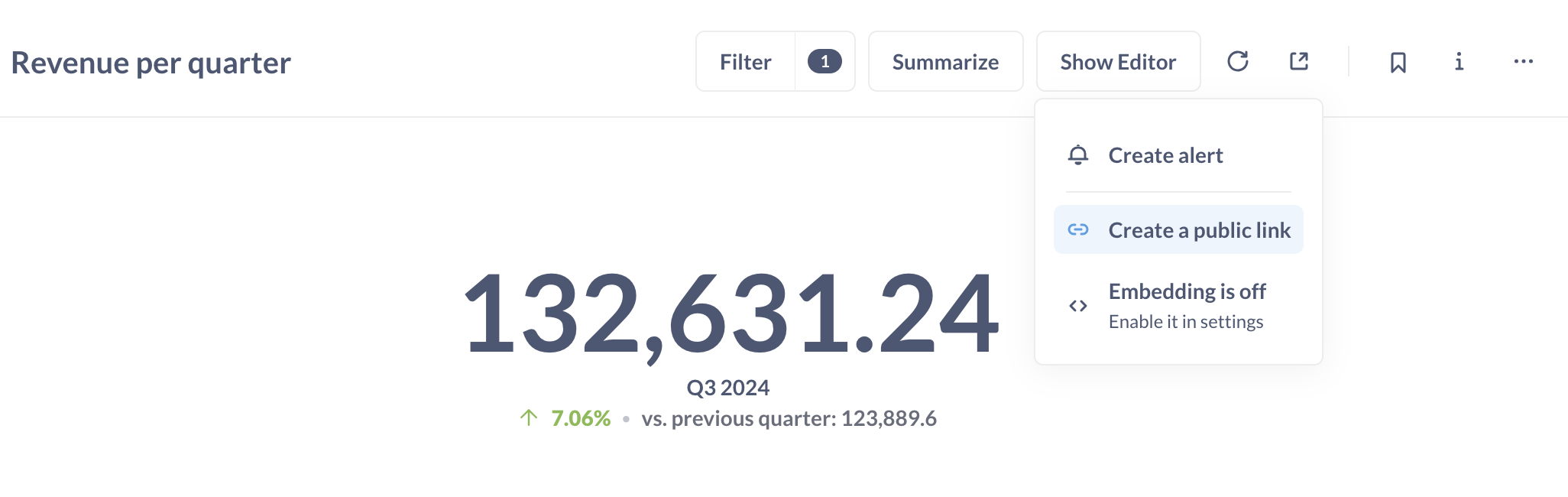
Export question results via public link
Export options are only available for questions, not dashboards.
Choose export format
Below the Public link URL, click the file format you want: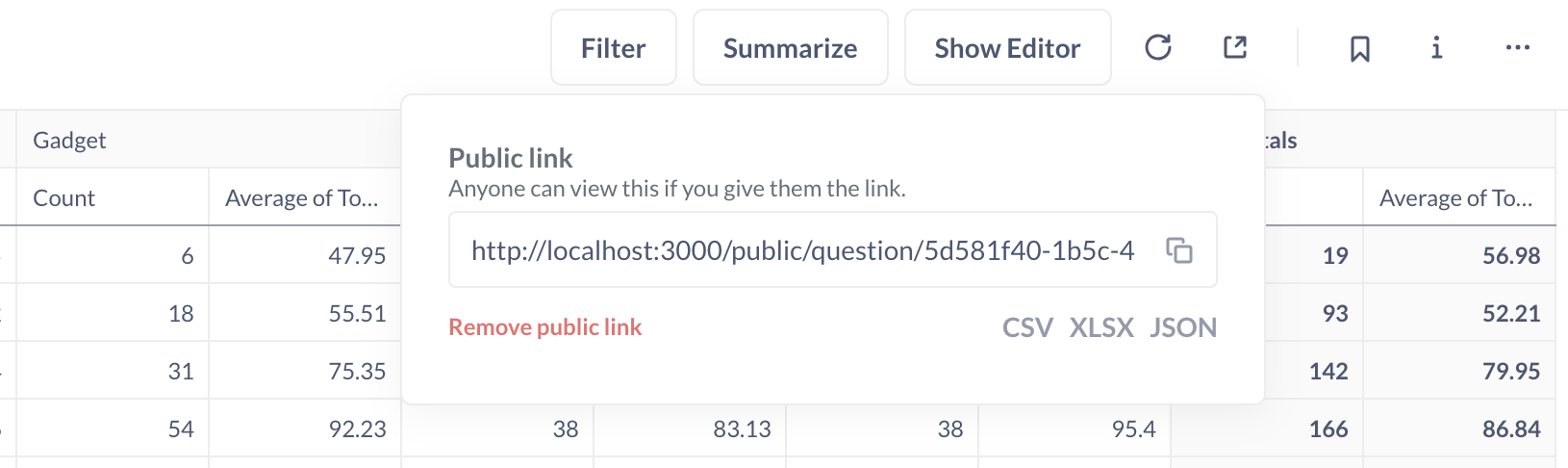
- CSV - Comma-separated values
- XLSX - Excel spreadsheet
- JSON - JavaScript Object Notation
Exporting raw, unformatted results
By default, Metabase exports formatted results (e.g., 0.42 → 42%). To export raw values, append?format_rows=false to the URL:
Create a public link for a dashboard
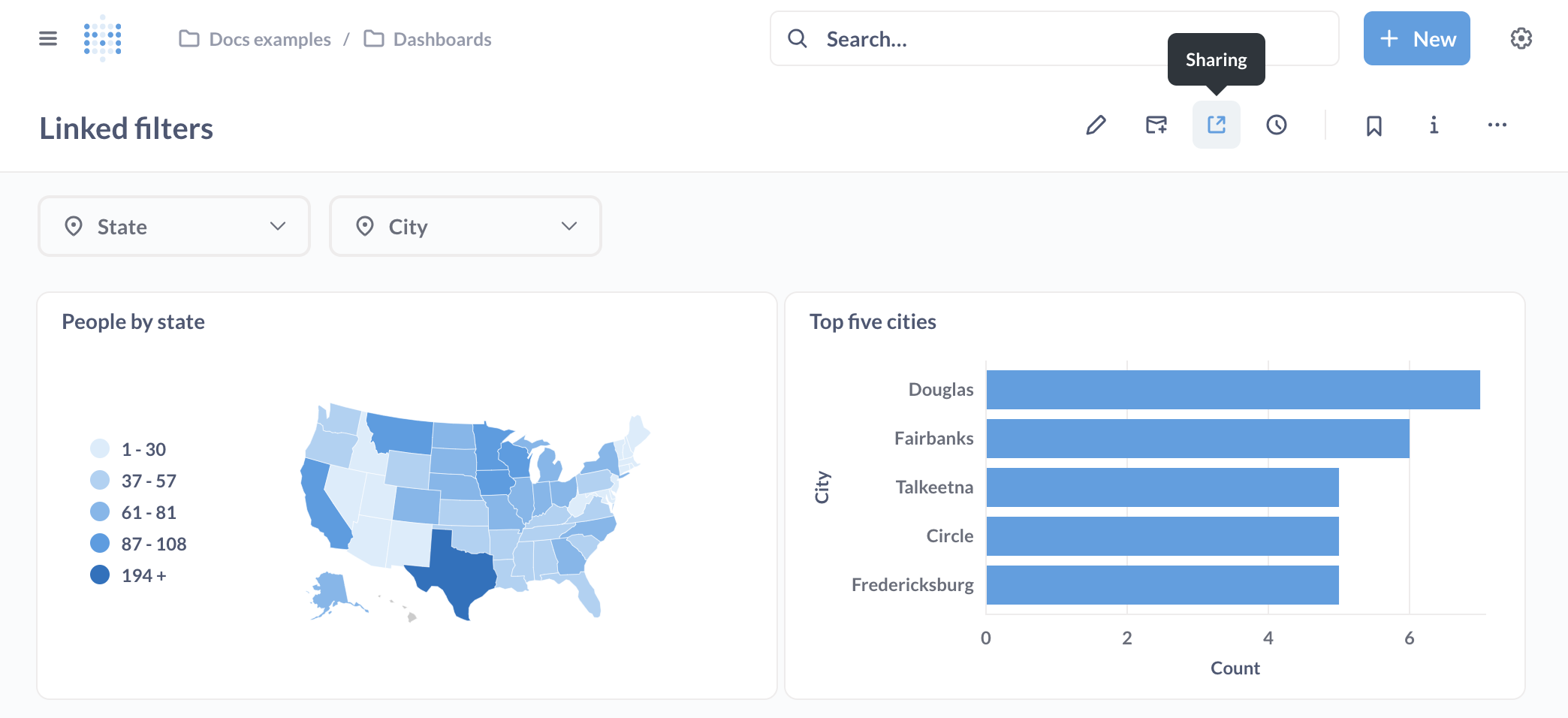
For more advanced dashboard embedding with parameters, see guest embedding.
Create a public link for a document
Public documents are read-only:
- Viewers cannot edit content or add comments
- Charts in the document allow downloads (CSV, XLSX, JSON)
- Use the Download results option in the chart menu
Public embeds
Embed questions or dashboards as iframes in your website or app: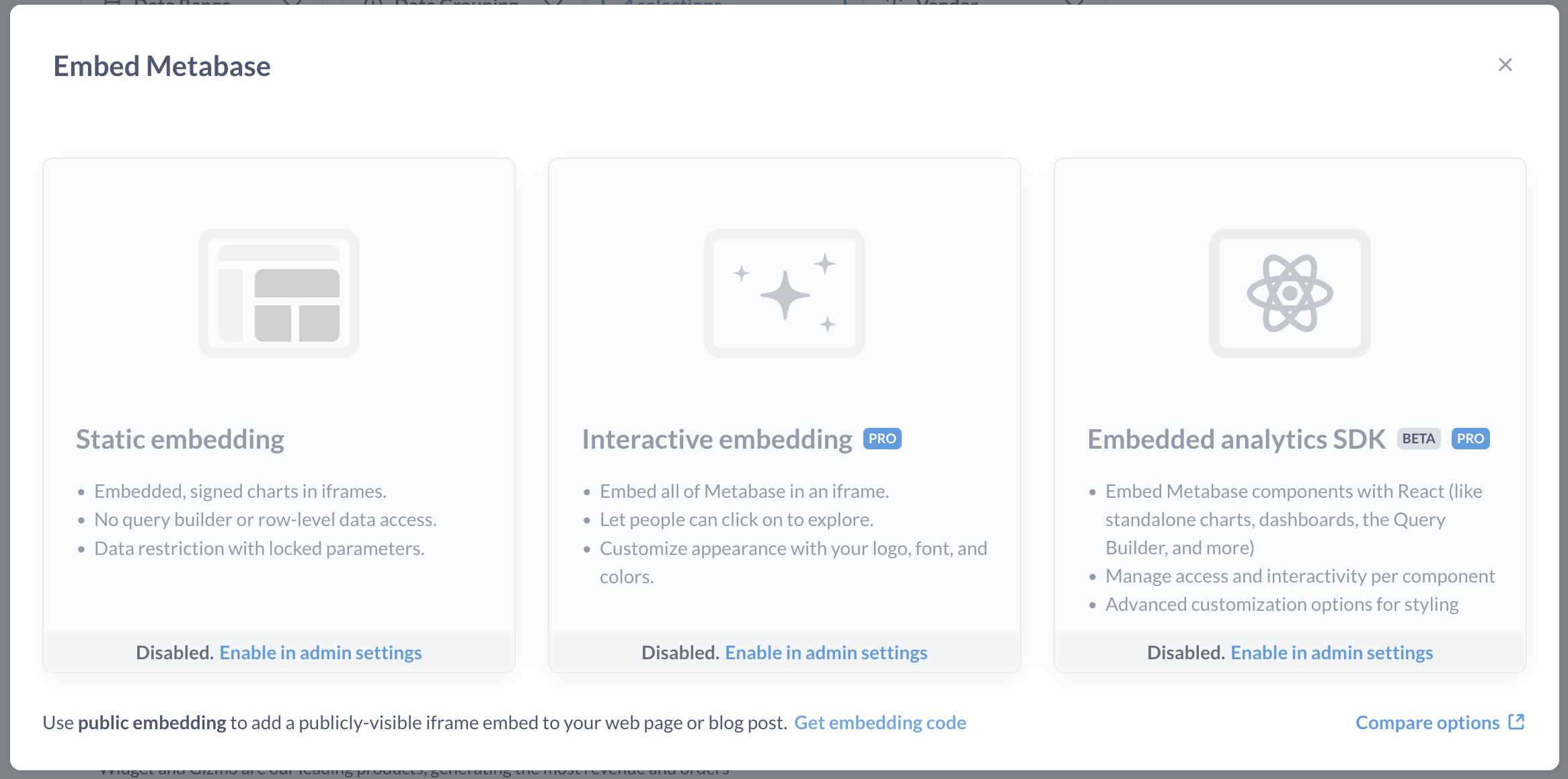
Example public embed code
Customizing public embeds
You can customize the appearance and filters of public embeds using URL parameters.Appearance parameters
Add hash parameters to customize the look:- Hide title
- Hide borders
- Dark theme
- Multiple options
Filter parameters
Apply filters to public embeds by adding query parameters. Make sure you’ve set up question filters or dashboard filters first.Basic filter syntax
Filter names in URLs should be lowercase with underscores instead of spaces. For example, “Filter for User ZIP Code” becomes
filter_for_user_zip_code.Examples
Simulating drill-through on public dashboards
Metabase’s automatic drill-through doesn’t work on public dashboards because it requires access to raw data. However, you can simulate drill-through using custom click behaviors:Create public link for destination
Generate a public link for the destination dashboard and copy the URL
Set up custom click behavior
On your primary dashboard:
- Create a custom destination with type “URL”
- Set it to the destination dashboard’s public link
Example: Invoice to Accounts drill-through
Pass the Plan value from an Invoices dashboard to an Accounts dashboard: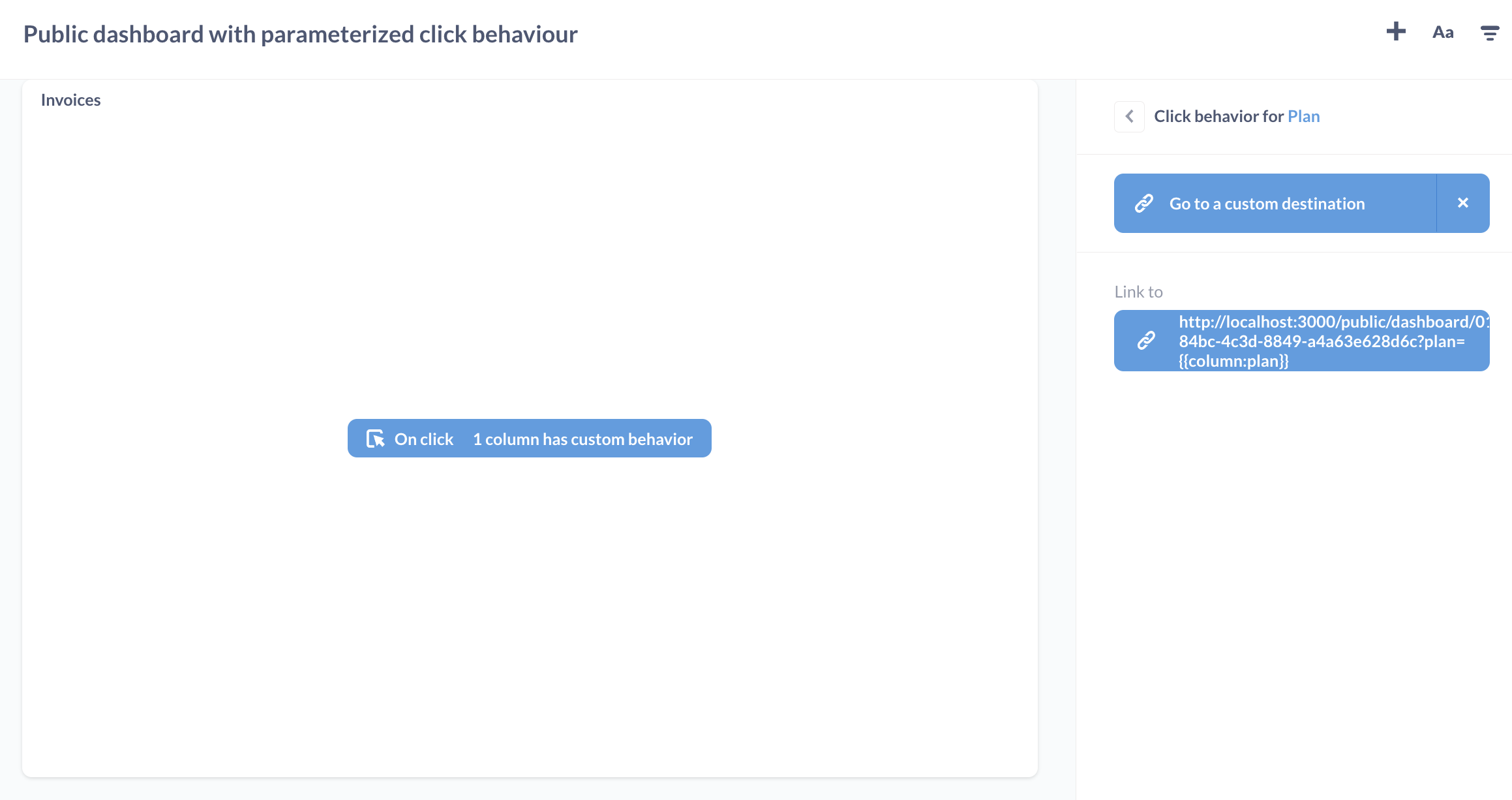
Managing public sharing
Disable public sharing globally

If you disable and then re-enable public sharing, all previously generated public links will still work (unless you deactivated them individually).
View all publicly shared content
Admins can see all publicly shared questions, dashboards, documents, and actions: Admin > Settings > Public sharing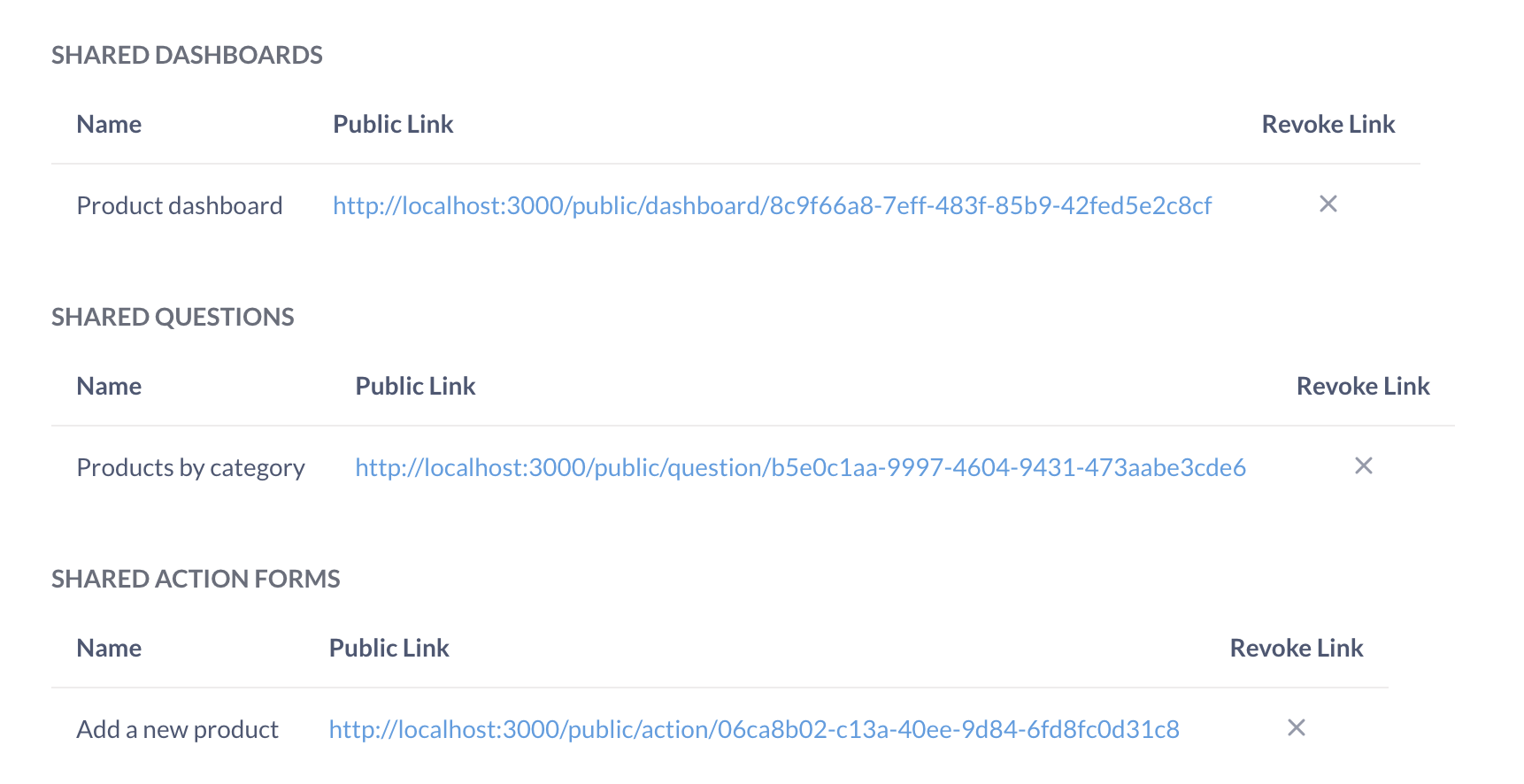
Deactivate individual public links
- Single item
- Multiple items
Security considerations
Anyone with the link can access it
Anyone with the link can access it
Public links don’t require authentication. Treat them like passwords—anyone who has the URL can view the content.
Links are stable and don't expire
Links are stable and don't expire
Public links remain active until you manually deactivate them. They don’t expire automatically.
Data is visible to search engines
Data is visible to search engines
Public links may be indexed by search engines unless you add robots.txt rules or deactivate the link.
Parameters can be modified
Parameters can be modified
Users can modify URL parameters to see different filtered views of your data (unless using guest embeds with locked parameters).
No audit trail for viewers
No audit trail for viewers
You can’t see who accessed a public link or when they viewed it.
When to use alternatives
Use guest embeds if...
- You need locked filter parameters
- You want to control data visibility per embed
- You need slightly more security than public links
Use SSO embeds if...
- You need per-user authentication
- You want drill-through and exploration
- You need audit trails and usage analytics
Download permissions
Data downloads are enabled by default for public embeds. Only Pro and Enterprise plans can disable downloads.
- Go to Admin > Settings > Public sharing
- Configure download permissions for your plan level
Best practices
Use descriptive names
Give questions and dashboards clear names—the name appears in public links and helps people understand what they’re viewing.
Test in private browsing
Always test public links in an incognito/private browser window to ensure they work correctly.
Monitor shared content
Regularly review public links in Admin > Public sharing and deactivate any that are no longer needed.
Consider data sensitivity
Before creating a public link, verify that the data is appropriate for public viewing.
Use guest embeds for sensitive data
If you need any level of data control or security, use guest embeds instead.
Common use cases
Marketing website metrics
Marketing website metrics
Embed public dashboards on your marketing site to showcase product metrics or customer success stories.
Blog post visualizations
Blog post visualizations
Include public question embeds in blog posts to illustrate data points or research findings.
Stakeholder reports
Stakeholder reports
Share public dashboard links with external stakeholders who don’t need Metabase accounts.
Data journalism
Data journalism
Publish public charts and dashboards as part of data-driven stories or reports.
Public data portals
Public data portals
Create public dashboards for open data initiatives or government transparency.
Troubleshooting
Public link not working
Public link not working
- Verify that public sharing is enabled in Admin > Settings > Public sharing
- Check that the link hasn’t been deactivated
- Ensure the question or dashboard still exists
- Try accessing in a private/incognito browser window
Iframe not displaying
Iframe not displaying
- Check browser console for errors
- Verify the iframe
srcURL is correct - Ensure your website’s Content Security Policy allows iframes from your Metabase domain
- Test the public link directly in a browser first
Filters not applying
Filters not applying
- Verify filter names match (lowercase, underscores instead of spaces)
- Check that filters are set up on the question/dashboard
- Ensure filter values are URL-encoded
- Test the filter by manually adding it to the URL
Export links not downloading
Export links not downloading
- Verify you’re using a question export link (not dashboard)
- Check that the file format extension is correct (.csv, .xlsx, .json)
- Ensure pop-up blockers aren’t preventing the download
- Try the link in a different browser
Next steps
Guest embeds
Secure embeds with locked parameters
Modular embedding
Authenticated embeds with full functionality
Appearance settings
Customize Metabase’s look and feel
Dashboard filters
Set up filters for dashboards